
Set Up the EasePi-R1 as Your Main Router
When the EasePi-R1 is your main router, it manages your home network. Connect your upstream network to the R1's WAN port. Connect computers, switches, and wireless access points (APs) to the R1's LAN ports.
The default port assignments are:
ETH0is WAN.ETH1throughETH3are LAN.- On the R1 Pro,
ETH2andETH3support 2.5 GbE.
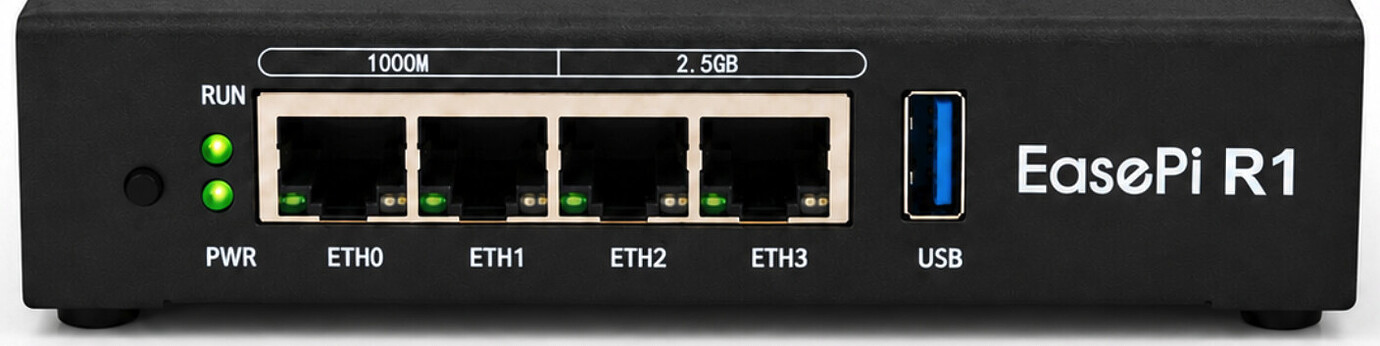
For Wi-Fi, pair the wired R1 with your existing Wi-Fi router, a wireless access point, or a mesh Wi-Fi system.
Before connecting the cables, check whether your fiber modem (ONT) is in bridge mode or router mode. Both use the same physical wiring. The mode determines how to configure the R1's WAN connection.
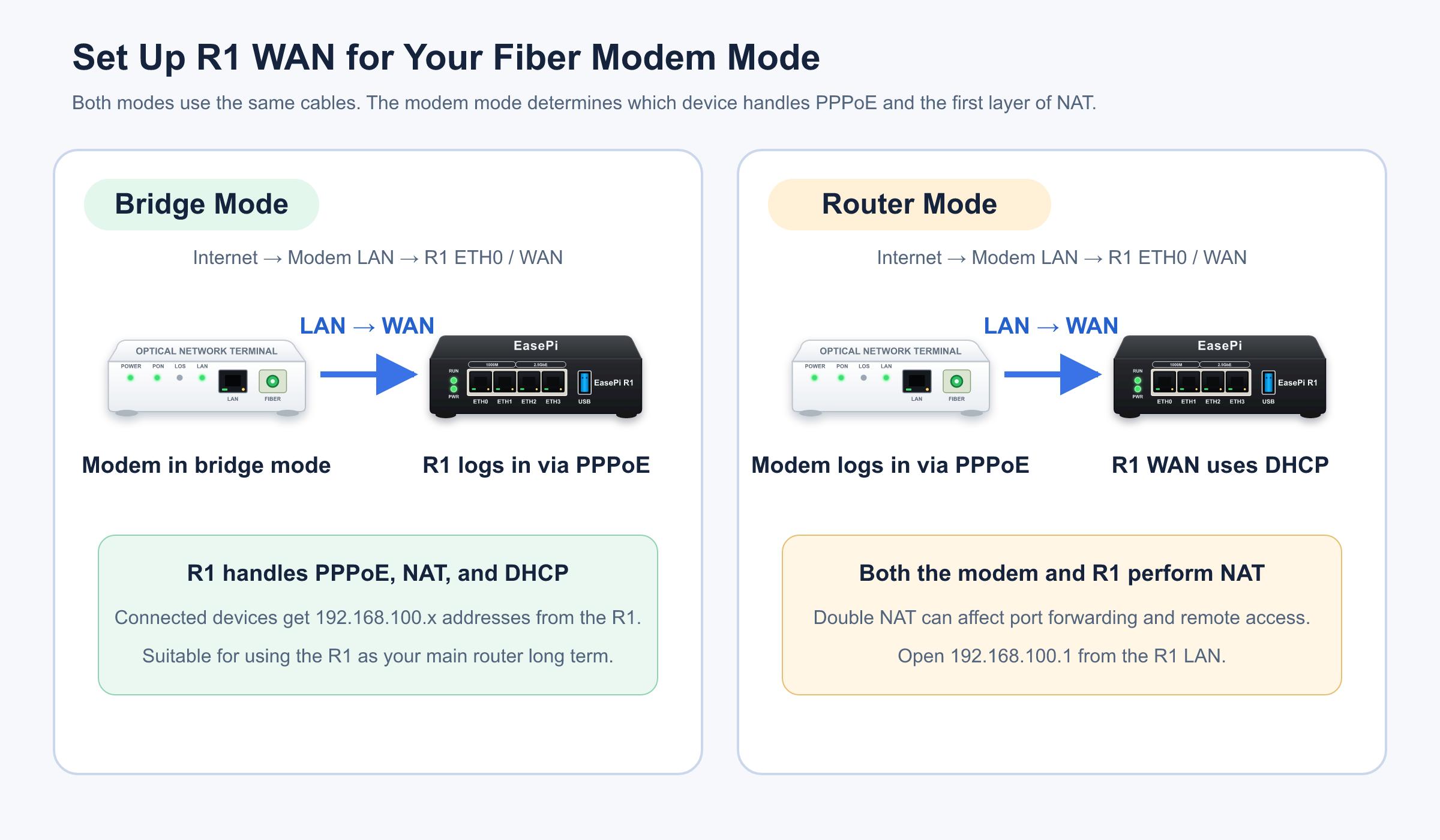
Fiber Modem in Bridge Mode
In this setup, the R1 establishes the broadband connection using PPPoE. Your fiber line connects to the modem. The modem's LAN port connects to the R1's ETH0/WAN, and your computer temporarily connects to one of the R1's ETH1–ETH3/LAN ports for setup.
- Power on the R1 and wait for the
RUNandPWRLEDs to turn steady. Both LEDs should be steadily lit when the R1 has finished booting and is running normally. - Connect the fiber modem's LAN port to the R1's
ETH0/WAN. - Connect your computer to any LAN port on the R1.
- Open
http://192.168.100.1in a browser. - Enter
rootas the username and leave the password field blank. If that fails, trypassword. - Open the Network Wizard and select PPPoE.
- Enter the broadband username and password provided by your internet service provider (ISP), then save the configuration.
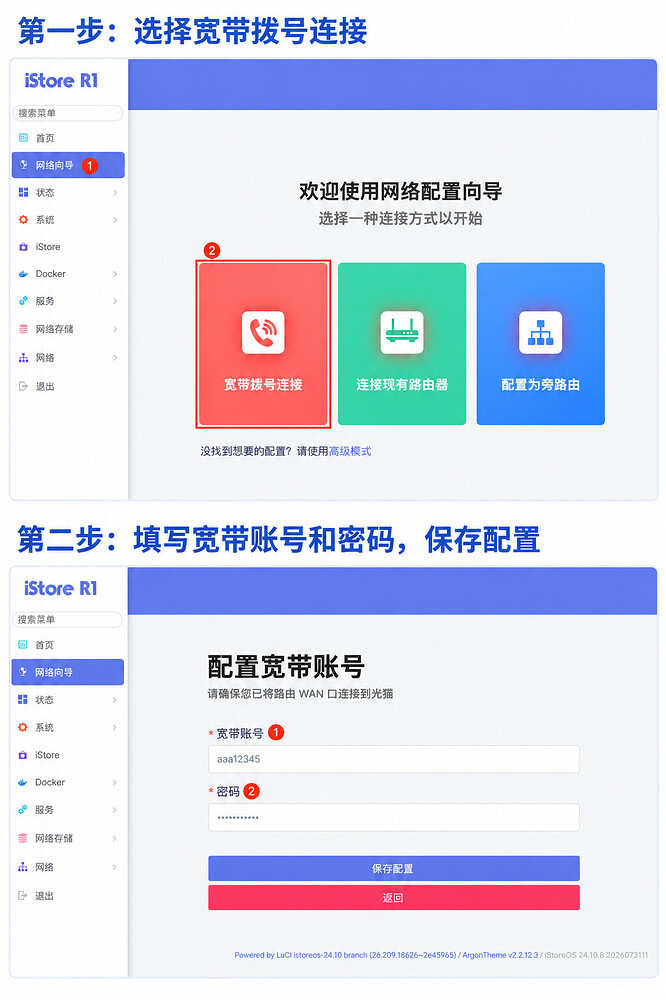
If you need your broadband credentials, ask your ISP first. Keep the modem's existing configuration intact to avoid interrupting IPTV or landline service or clearing ISP settings.
Fiber Modem in Router Mode
If your modem already connects to the internet and assigns addresses to connected devices, use the same wiring. The fiber line connects to the modem, and the modem's LAN port connects to the R1's ETH0/WAN.
Set the R1's WAN connection to obtain an IP address automatically using DHCP. The modem handles the broadband login. A computer connected to the R1's LAN can still open the R1's admin interface at 192.168.100.1.
This setup lets you get online quickly. Both the modem and the R1 perform NAT, so online gaming, port forwarding, and remote access may be affected by double NAT. If you plan to use the R1 as your main router long term, you can consider switching the modem to bridge mode.
Connect Your Existing Wi-Fi Router
Connect your fiber modem to the R1's WAN port and your existing Wi-Fi router to an R1 LAN port. Put the Wi-Fi router in access point (AP) mode.
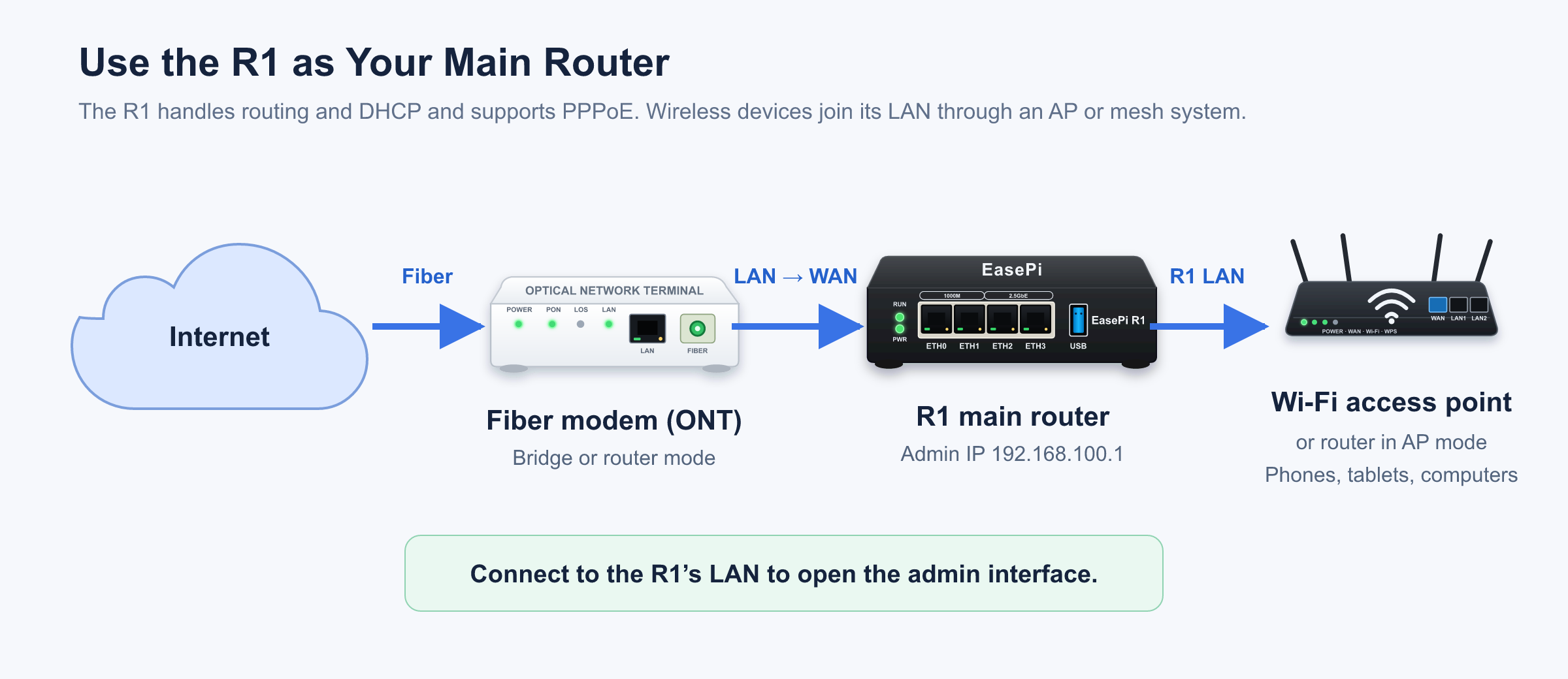
With this setup, the R1 handles the broadband connection, routing, and DHCP, and your existing Wi-Fi router provides wireless access. Connect your phone to your existing Wi-Fi and open 192.168.100.1 to manage the R1.
After enabling your Wi-Fi router's built-in AP mode, follow its on-screen instructions to choose the WAN or LAN port for the uplink. If it has no AP mode, you can disable its DHCP service and connect one of its LAN ports to an R1 LAN port. Leaving the Wi-Fi router in router mode adds another routing layer.
Connect a Switch, Mesh Wi-Fi, or Controller-Managed Access Points
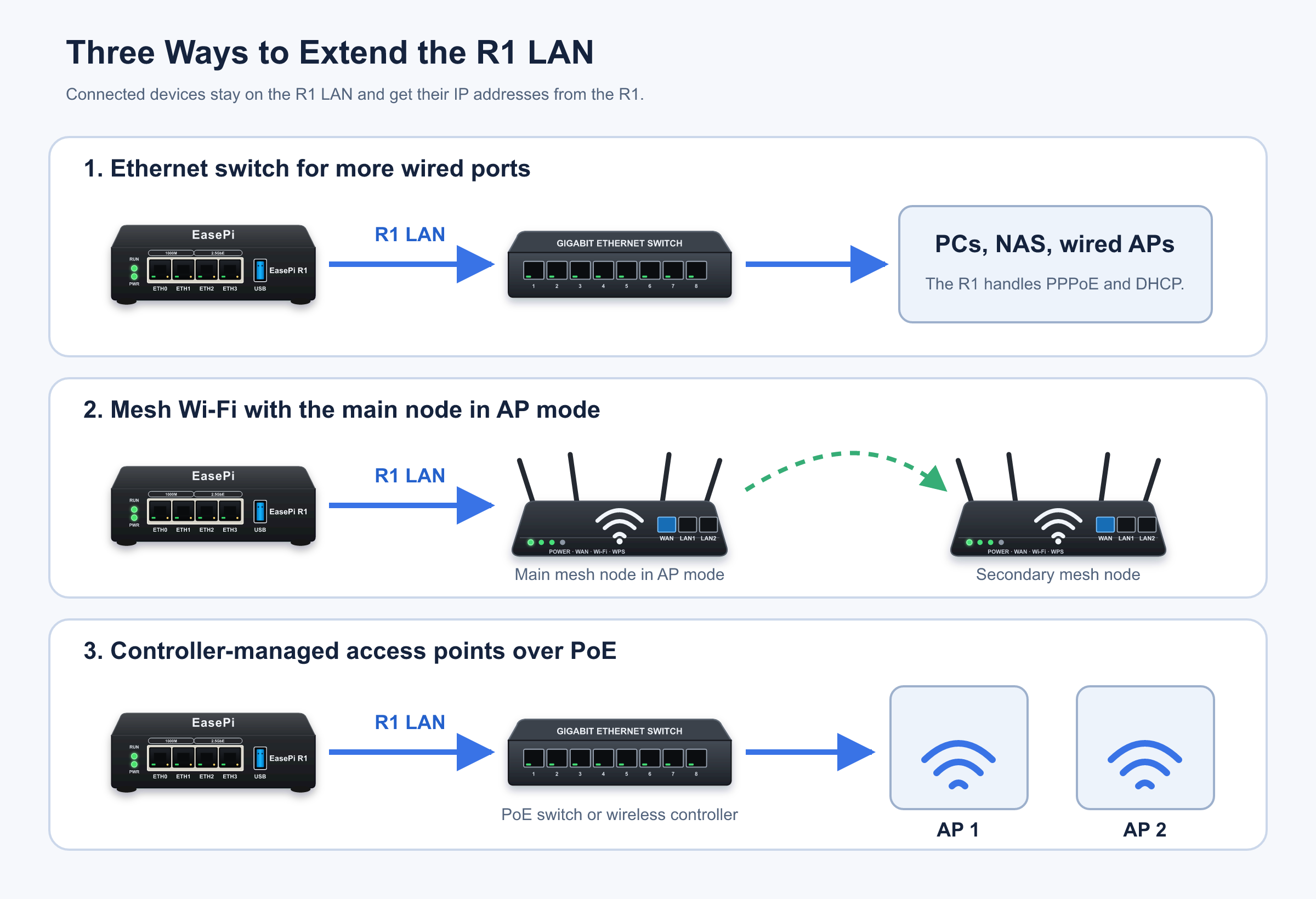
Connect the switch or wireless system to an R1 LAN port. A phone or computer on the R1's LAN can open 192.168.100.1.
Check Your Setup
- The
RUNandPWRLEDs are both steadily lit. - The fiber modem is connected to the R1's WAN port.
- Your computer or wireless access point is connected to an R1 LAN port.
- Your computer gets an address such as
192.168.100.x. - You can open
192.168.100.1in a browser. - Devices connected through the R1 can get online once the WAN connection is configured.
If the admin interface opens but the R1 or its connected devices cannot get online, see EasePi-R1 FAQs.