
EasePi-R1 FAQs
If you can open the iStoreOS admin interface, your phone or computer can communicate with the EasePi-R1. Internet access problems at this point often come from the uplink connection, IP address, gateway, or DNS configuration.
First, check that the R1's front-panel RUN and PWR LEDs are both steadily lit. This indicates that the R1 has finished booting and is running normally. Leave the current configuration in place while you check the settings for the R1's role.
Identify the R1's Role
| R1 role | R1 uplink port after setup | DHCP server |
|---|---|---|
| Main router | WAN | R1 |
| Bypass router | LAN | Existing main router |
| NAS or home server | WAN | Existing main router |
Make sure the wiring matches the R1's role before changing any settings.
Internet Access Fails When the R1 Is the Main Router
1. Check the Wiring
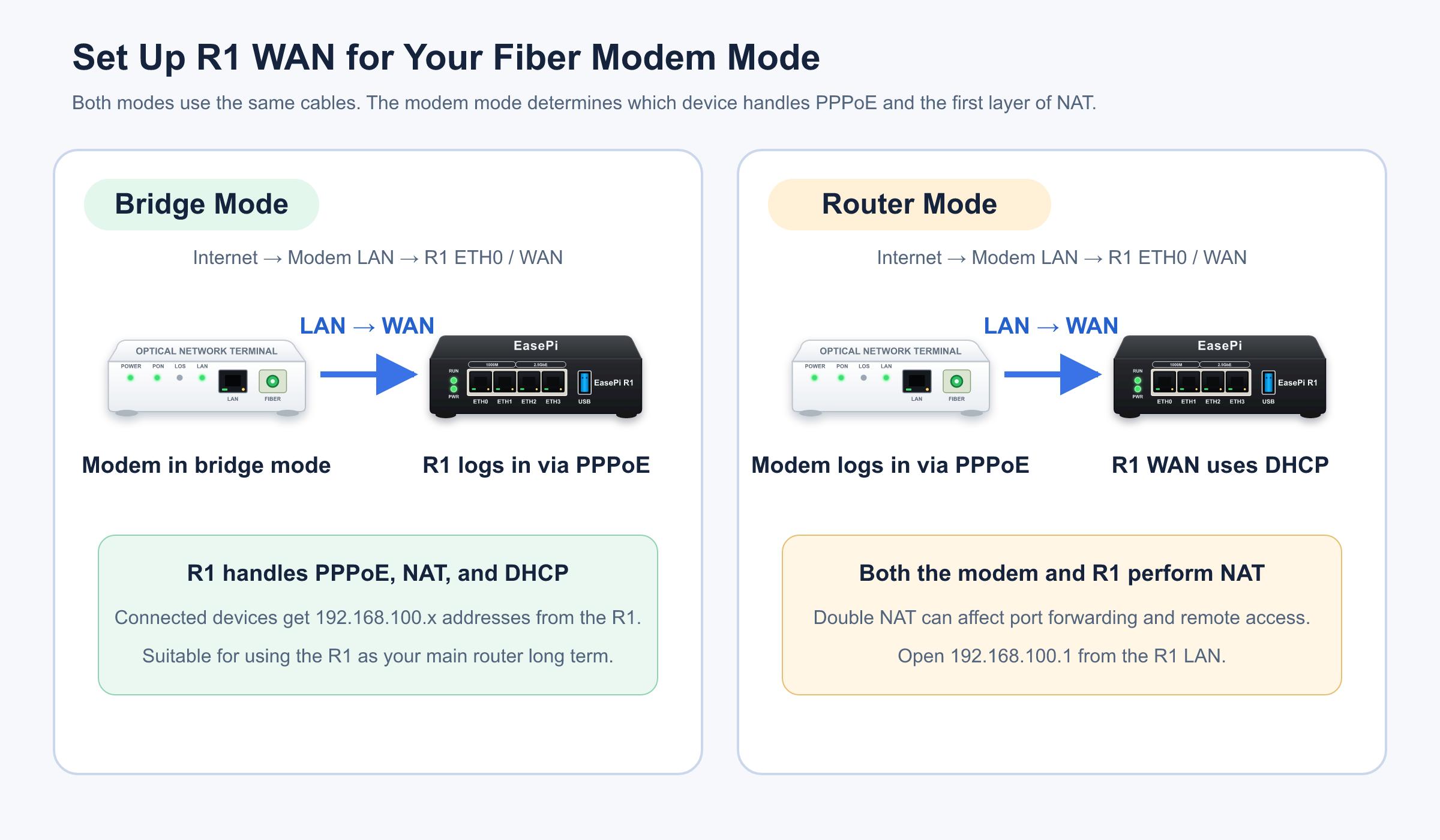
Connect the fiber modem's LAN port to the R1's ETH0/WAN. Connect your computer or wireless access point to one of the R1's ETH1–ETH3/LAN ports.
2. Check the Fiber Modem's Mode
If the fiber modem is in bridge mode, the R1 needs to establish the broadband connection using PPPoE.
- Open the Network Wizard.
- Select PPPoE.
- Enter the correct broadband username and password.
- Check that the PPPoE connection succeeds.
If the fiber modem is in router mode, the R1's WAN should get the IP address, subnet mask, gateway, and DNS settings automatically from the modem. If WAN does not receive an address, check the modem's LAN port, the Ethernet cable, and the upstream DHCP service.
3. Check for an Address Conflict
If both the fiber modem and the R1 LAN use 192.168.100.1, their subnets or management addresses can conflict. Connect a computer directly to an R1 LAN port, change the R1's LAN subnet, then reconnect the upstream network.
4. Check Downstream Wi-Fi Equipment
If your existing Wi-Fi router is connected downstream of the R1, use access point (AP) mode. Router mode adds another routing layer, which can complicate addressing, device management, and port forwarding even if basic internet access still works.
Internet Access Fails When the R1 Is a NAS or Home Server
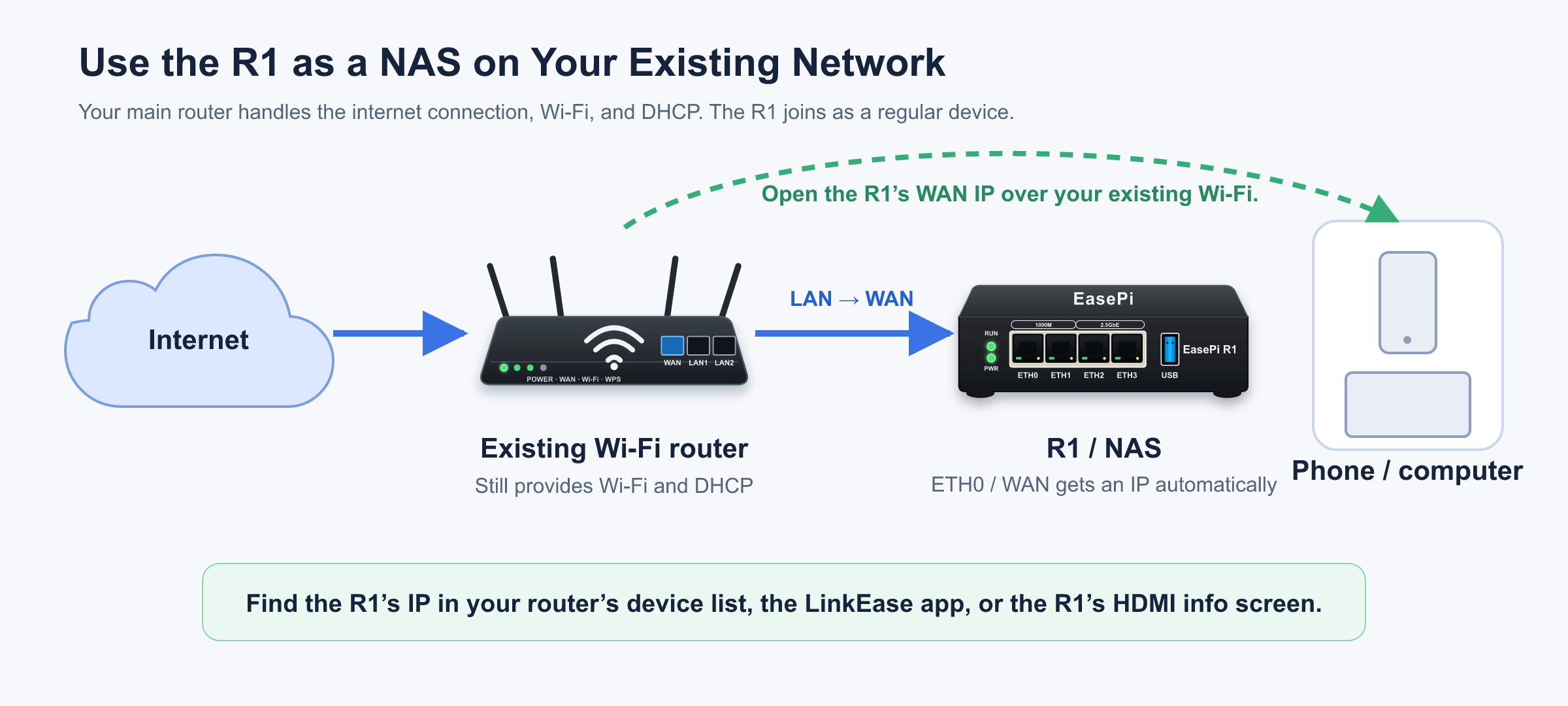
Connect a LAN port on your existing main router to the R1's ETH0/WAN.
Check the following in order.
- The R1's WAN port shows an active link.
- The R1's WAN port receives an IP address from the existing main router.
- The assigned gateway is the existing main router's IP address.
- The R1 receives DNS settings automatically.
- The existing main router itself can get online.
- The main router has no access restriction, blocklist entry, or VLAN isolation that prevents the R1 from getting online.
If WAN does not get an IP address, try another LAN port on your main router or another Ethernet cable. Confirm that the upstream DHCP service is enabled.
Internet Access Fails When the R1 Is a Bypass Router
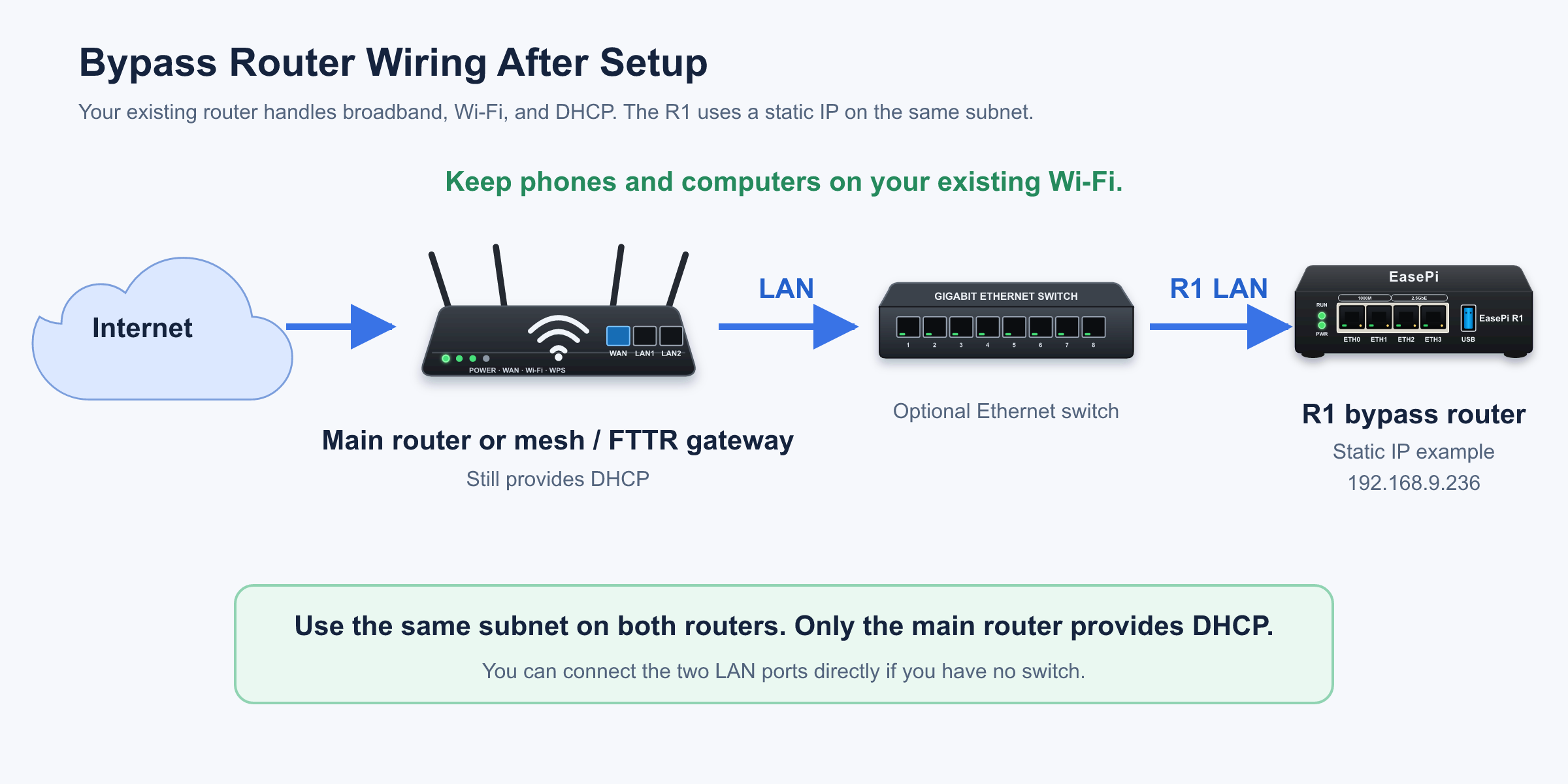
The final uplink goes from a LAN port on your existing main router to one of the R1's ETH1–ETH3/LAN ports. Confirm that you moved the cable from R1 WAN to R1 LAN after saving the automatic configuration.
Check the following settings.
- The R1's static IP address is on the same subnet as the main router.
- The R1's static IP address is unique on the network.
- The subnet mask matches the existing network.
- The gateway is set to the existing main router's IP address.
- The DNS servers are reachable.
- DHCPv4 service is turned off on the R1.
- Only the existing main router provides DHCP on the home network.
If you can open the R1's admin interface but devices using the R1 as their gateway cannot get online, follow the bypass router wizard's instructions to test enabling NAT. Verify the change with one device before applying it more broadly.
Websites Load but Some Features Fail
IP Addresses Work but Domain Names Do Not
DNS may be the cause. Check that the R1 has the correct DNS settings, the DNS servers used by the client are reachable, and the main router allows the configured DNS servers.
Web Browsing Works but Remote Access or Gaming Fails
If the fiber modem, R1, and downstream Wi-Fi router all operate in router mode, your network may have double or multiple layers of NAT.
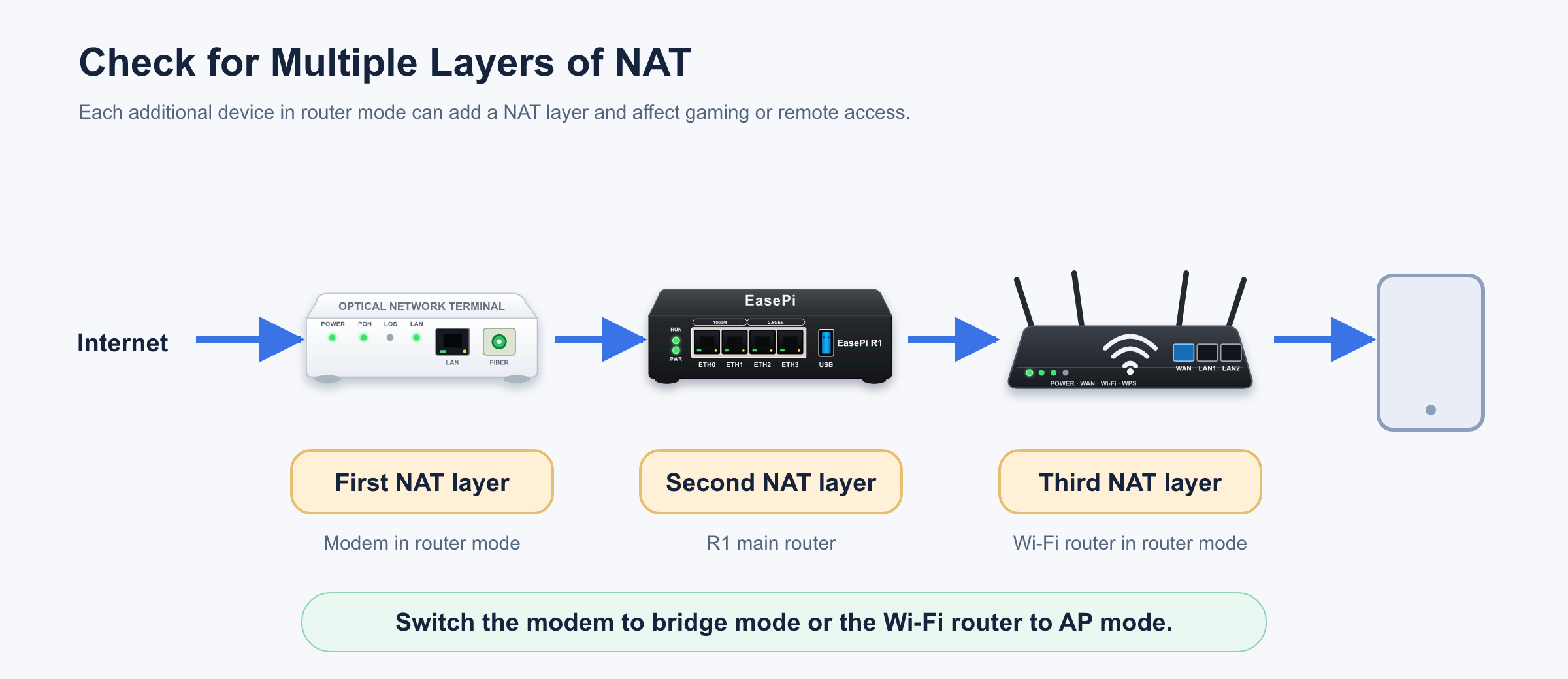
Depending on your long-term setup, consider switching the fiber modem to bridge mode or the downstream Wi-Fi router to AP mode.
Only One Device Cannot Get Online
Check that device's IP address, gateway, and DNS settings. Look for an old manually configured bypass router address and check whether it is on guest Wi-Fi. If your other devices are online, start by troubleshooting the affected device.
Check Where the Connection Stops Working
- Your phone or computer can open the R1's admin interface. It can reach the R1 over the local network.
- The R1 itself can get online. Its upstream IP address, gateway, and DNS settings are working.
- Other devices can get online through the R1. The main router, bypass router, or client gateway setup is working.
Identify which of these checks fails before changing settings. This can help you resolve a single device's issue without resetting your home network.
To review the wiring for each role, return to Three ways to set up your EasePi-R1.